
Getting Started with WhatsApp on Your Phone
Download, setup, and send your first message. Covers both Android and iPhone with screenshots you can follow along.


Why WhatsApp Makes Staying Connected Easy
WhatsApp's been around since 2009, and it's the world's most popular messaging app. Over two billion people use it — which means your grandkids probably do too. The best part? It's free, and it works on almost any phone.
Once you've set it up, you can message family members, see when they've read your messages, and even make video calls without paying a thing. No wonder so many people over 55 have switched to WhatsApp. It's simple, reliable, and it actually works.
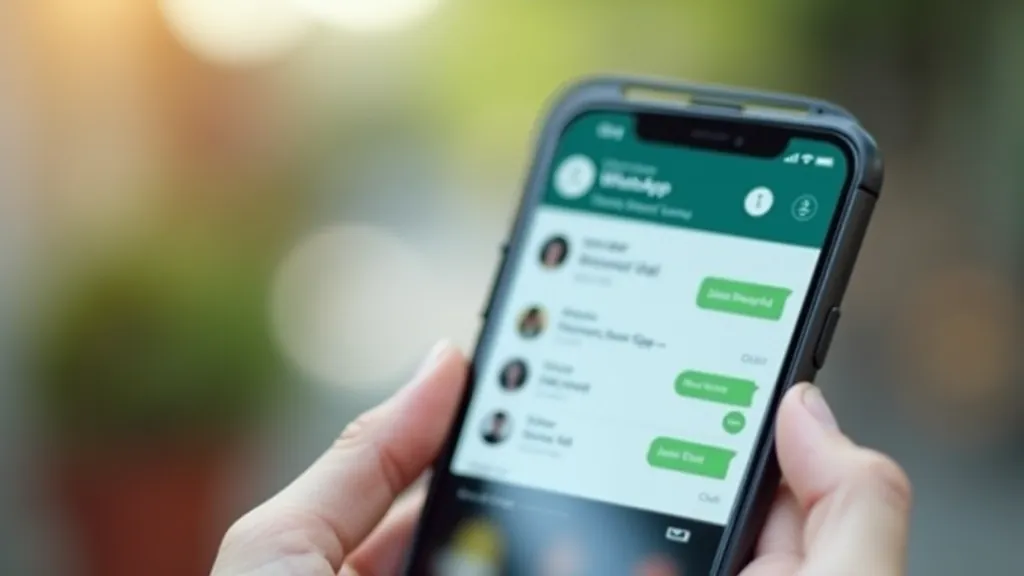
Step 1: Download the App
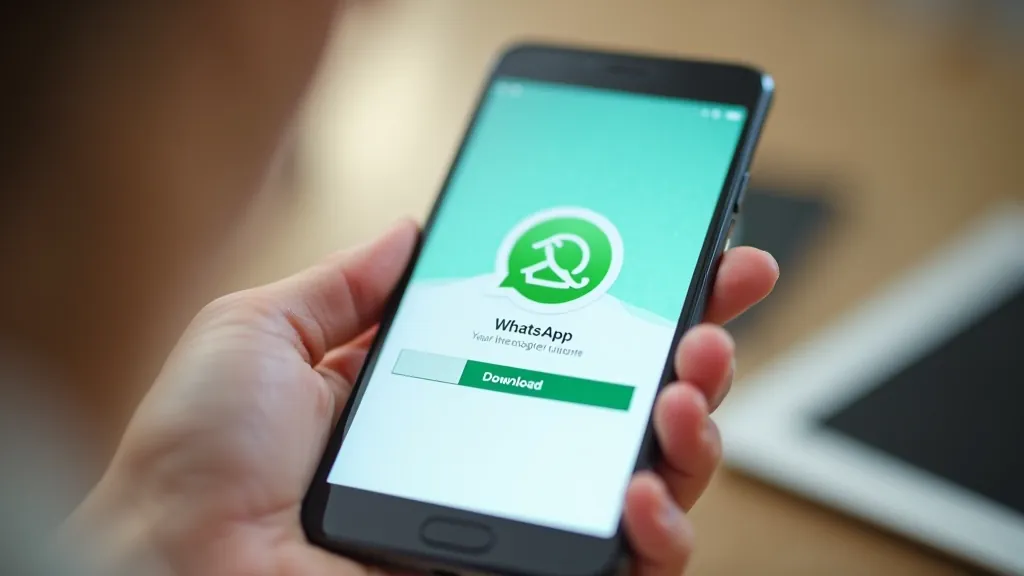
First thing's first — you've got to get WhatsApp on your phone. Don't worry, it's absolutely free.
1
Find the App Store
On an iPhone, open the App Store (blue icon with white symbol). On Android, open Google Play (colorful triangular icon).
2
Search for WhatsApp
Tap the search icon at the bottom (iPhone) or top (Android). Type "WhatsApp Messenger" and look for the one with the green phone icon.
3
Tap Install
Hit the cloud icon with a down arrow (iPhone says "Get"). You might need to use Face ID or your fingerprint to confirm. The download takes about 2-3 minutes depending on your internet speed.
Step 2: Open the App and Verify Your Number
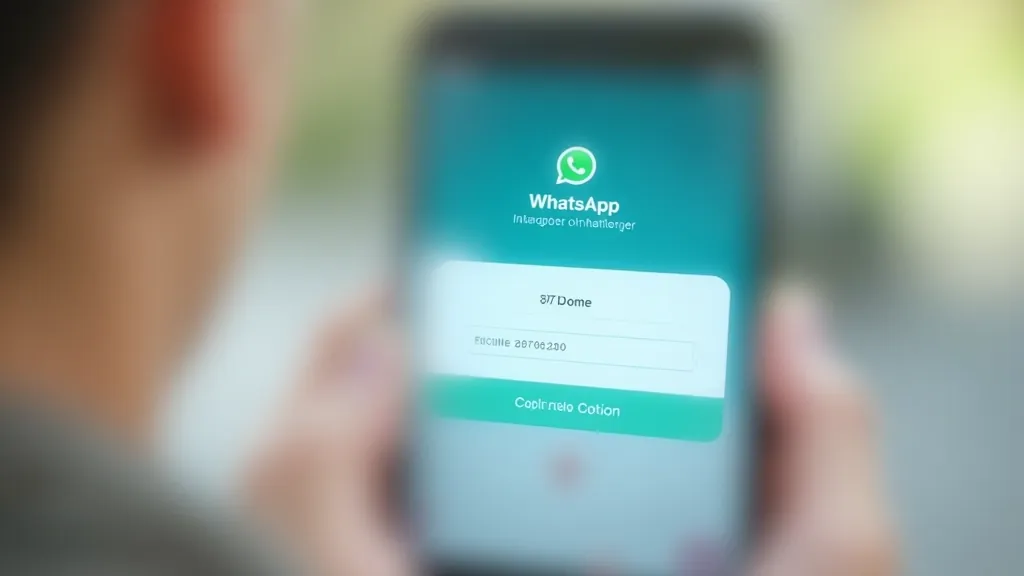
Once WhatsApp is installed, opening it for the first time is where the real setup happens. The app needs to confirm your phone number so it knows how to reach you.
WhatsApp works with your phone number, not a username. When someone adds your number, they'll see you're on WhatsApp automatically.
Tap the app icon to launch it. The first screen asks for your phone number — enter it with your country code. Ireland's code is +353, so a Dublin number might look like +353 1 234 5678. WhatsApp sends you a text message with a 6-digit code. You've got 10 minutes to enter it. If you don't get the code, WhatsApp can call you instead and read it out loud.
Expand Your Skills



Step 3: Add Your Profile Photo and Name
After you've verified your number, WhatsApp asks you to set up your profile. This is optional, but it's worth doing — your contacts will see your name and photo when they message you.
You can skip this step if you want, but most people add a simple photo and their first name. A headshot or a recent photo works best. You don't need anything professional. Take one with your phone camera in natural light — that's what most people do. If you don't want to use a photo, you can use a text-only profile with just your name. WhatsApp keeps everything private. Your profile photo's only visible to people who have your phone number saved in their contacts.
You can change your photo and name anytime. Just tap Settings, then tap your name at the top.

Important Information
This guide provides educational information about WhatsApp's basic setup and features as of May 2026. WhatsApp features, interface design, and availability may change without notice. The information presented is accurate to the best of our knowledge but shouldn't replace official WhatsApp support documentation. For technical issues or account security concerns, always contact WhatsApp's official support through the app or their website. Privacy and security practices are subject to WhatsApp's current terms of service and privacy policy, which you should review before using the service.
You're Ready to Start
That's honestly all there is to getting started with WhatsApp. Download, verify your number, add a photo if you want, and send your first message. The whole process takes about 10 minutes if you're taking your time with it.
Once you're comfortable with basic messaging, there's plenty more to explore — group chats, voice messages, photos, video calls. But you don't need to learn all that today. Get the app set up, message someone you know, and get the feel for how it works. After that, the rest comes naturally.
If you run into trouble during setup, don't panic. WhatsApp's pretty straightforward, but there are solutions for most common problems. Check out our troubleshooting guide if you get stuck, or reach out to WhatsApp's official support. You've got this.