

Getting Started with WhatsApp on Your Phone
Download, setup, and send your first message. Covers both Android and iPhone with clear step-by-step instructions.
See your grandchildren's faces in real-time. We explain how to start a call, troubleshoot audio problems, and what to do if it disconnects.
Video calling changed everything. You don't have to imagine your grandchild's smile anymore — you can see it. Hear their voice clearly. Watch them open presents on birthdays or show you their school projects. It's simple once you know where to start, and we're going to walk you through it step by step.
Both WhatsApp and Viber work the same basic way. You'll find the video call button, tap it, and within seconds you're face-to-face with someone across the world. No special equipment needed. Just your phone and a stable internet connection.

Finding the video call button is easier than you think. In WhatsApp, open the contact you want to call. At the top of the chat, you'll see a phone icon and next to it a camera icon — that's your video call button. Tap it once. Your phone will ring their phone, and they'll see your name pop up asking if they want to accept.
Viber works almost identically. Open the person's contact, and you'll see the video camera icon right there at the top. It's the same process — one tap and the call starts ringing. Within 2-3 seconds, you'll hear a ringing sound and see their face appear on your screen if they accept.
Pro tip: Make sure both people have the app installed and updated. Video calls work best when you're both on WiFi or have good mobile data. If the call quality seems choppy, you're probably on a weak connection.


Nobody wants to squint at a tiny, blurry face. The good news? You don't need fancy equipment. Your phone's camera and microphone are perfectly fine. What matters is lighting and position.
Position your phone so the camera faces you directly — not down at your chin or up at the ceiling. Sit near a window if possible. Natural light makes a huge difference. It's not about being in bright sunlight. It's about even light that doesn't cast harsh shadows across your face.
For audio, don't worry about being too close to the microphone. Your phone will pick up your voice just fine from arm's distance. If the other person says they can't hear you clearly, move closer to your phone or turn up your speaker volume on their end.


Calls drop sometimes. It happens to everyone. The person on the other end might freeze mid-sentence. Your screen might go black. Don't panic — most problems have simple fixes.
If the call keeps dropping, it's usually your internet. Switch from mobile data to WiFi if you're nearby. Or move closer to your WiFi router. Sometimes just closing other apps helps. Facebook, email, news apps all use data in the background. Close them before your video call.
Can't hear the other person? Check your volume. There's a physical button on the side of your phone — turn it up. Also check that your speaker isn't muted. During a call, look for a speaker icon on your screen. Make sure it's not crossed out.
If the call won't connect at all: Hang up and try again. Sometimes it just needs a restart. If it still won't work, make sure the other person has the same app installed (both WhatsApp or both Viber — they don't mix).

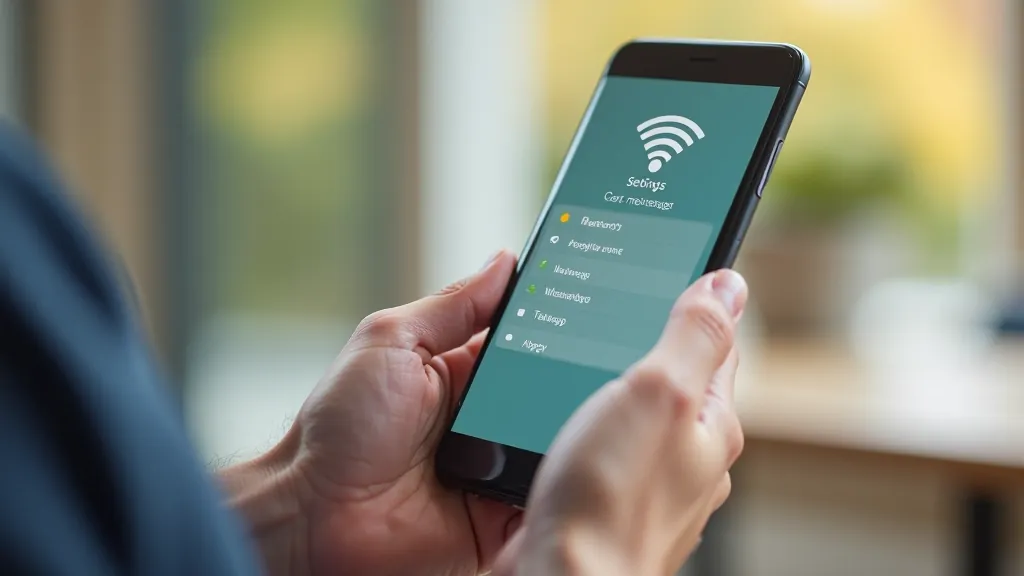
You don't need to be a tech expert to get great video calls. A few small changes make a big difference. WiFi is always better than mobile data for video calls. If you're at home, make sure you're close enough to your router that you have a strong signal. You'll see WiFi bars at the top of your phone — aim for 3 or 4 bars.
Update your apps regularly. WhatsApp and Viber push out updates that fix bugs and improve connection quality. You don't have to do anything — just let your phone install updates when it asks. It usually happens overnight.
One more thing: restart your phone once a week. It sounds simple, but it clears out temporary files and gives everything a fresh start. Your video calls will feel smoother afterward.
This guide is educational material designed to help you understand how to use WhatsApp and Viber video calling features. The steps and advice provided are based on how these apps currently work as of May 2026. App features and interfaces change regularly as companies release updates. If you notice something looks different on your phone, it may be because your app has been updated since this guide was written. For the most current information, check the official WhatsApp or Viber help pages within the apps themselves.
That's really all there is to it. Open WhatsApp or Viber, find the person you want to call, tap the video icon, and say hello. The first call might feel awkward. You'll figure out where to hold the phone and how to angle it. By the third or fourth call, you'll do it without thinking.
Video calls are one of the best ways to stay close to family who live far away. Your grandchild gets to see your face when you tell them a story. You get to watch them laugh. That connection — even through a screen — matters more than you might think.
If you run into problems or want to learn more about messaging, we've got guides for everything from sending photos to fixing connection issues.
Explore All Messaging Guides