


Why Messages Get Stuck
One of the most frustrating moments is when you send a message and it just... sits there. The little circle keeps spinning. Nothing happens. Your family's waiting to hear from you and the app won't cooperate.
Here's the thing — it's usually not the app's fault. It's almost always something simple with your connection or your phone's settings. We've helped hundreds of people fix this in about five minutes.
Check Your Internet First
WhatsApp and Viber both need a solid internet connection. WiFi is best, but mobile data works too. The problem is that sometimes your phone thinks it's connected when it's actually not.
Try this: open a web browser and search for something. If Google doesn't load, your connection's down. If the web works fine but messages won't send, it's a different problem — keep reading.
Most phones show a WiFi or data symbol at the top of the screen. If it's crossed out or gray, you're not connected. Turn WiFi off and back on. If you're using data, toggle it off for 10 seconds then back on.

When Messages Send But You Don't See Replies
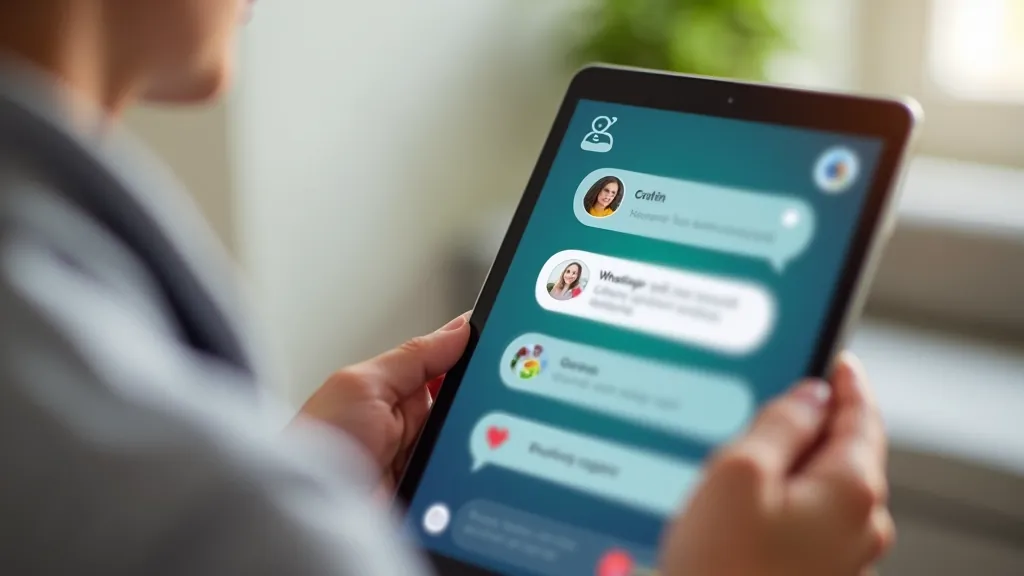
You send a message. It goes through — you see the checkmark. But you don't get a reply and you're wondering if the person actually received it.
There are actually three different checkmarks. One checkmark means the message left your phone. Two gray checkmarks mean the person's phone received it. Two blue checkmarks means they've read it.
If you're seeing just one checkmark, the message is still trying to send. If you're seeing two gray checkmarks but no reply after a few hours, the person simply hasn't read it yet. That's normal — not everyone checks their phone constantly.
Don't resend the message. They'll see it. We promise.
Keep Learning



Audio Problems on Calls
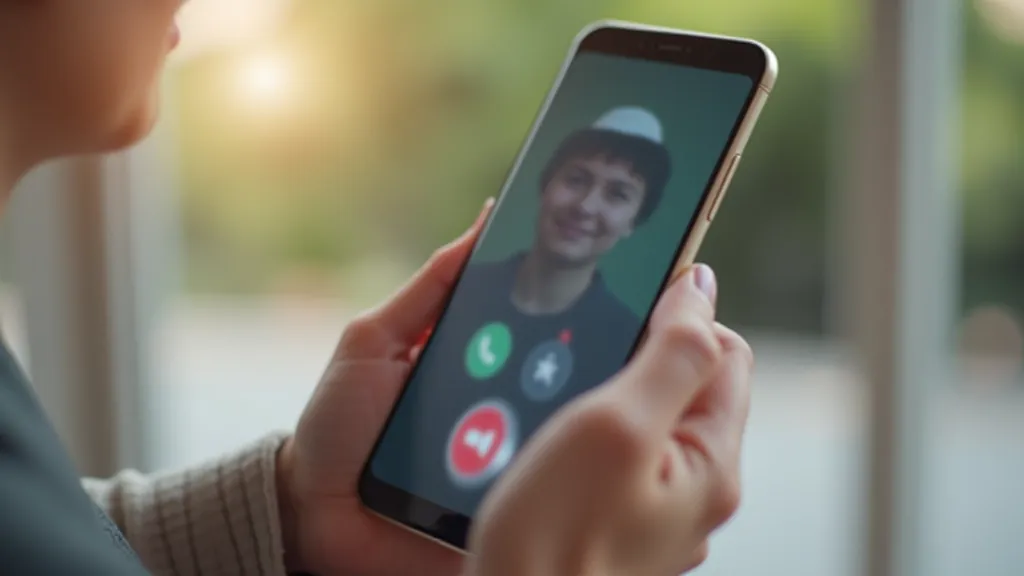
You're on a video call with your grandkids and suddenly you can't hear them. Or they're saying they can't hear you. It's one of the most common problems we see — and it's almost always fixable in seconds.
The Mute Button Mystery
During a call, look at the screen. You'll see a microphone icon — usually at the bottom of the screen. If there's a line through it, you're muted. They can't hear you.
Tap the microphone icon to unmute. That's it. You'd be surprised how many people don't realize they're muted. It happens to everyone.
If you're hearing nothing and the microphone icon isn't crossed out, check the volume. Your phone has physical volume buttons on the side. Press the up button. Sometimes people accidentally turn the volume all the way down.
Important Note
This guide provides educational information about troubleshooting common messaging app issues. Your specific situation may vary based on your phone model, operating system version, and internet provider. If problems persist after trying these solutions, contact your phone manufacturer's support or your internet provider for technical assistance.
When Apps Keep Crashing
Sometimes WhatsApp or Viber just closes without warning. You're in the middle of a conversation and boom — back to the home screen. This one's usually fixable by clearing your app's cache.
Clear Your Cache (Android)
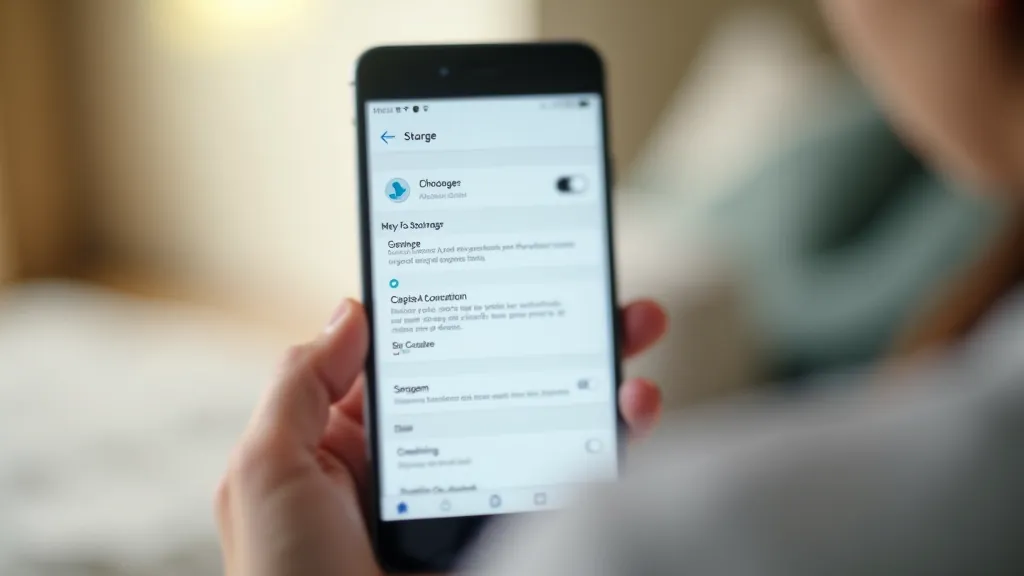
Go to Settings. Find Apps or Application Manager. Look for WhatsApp or Viber. Tap it. You'll see a button that says "Storage" or "Storage and Cache." Tap that. Now tap "Clear Cache." Don't tap "Clear Data" — that erases your messages.
Close the app completely. Open it again. Usually that's all you need.
For iPhone Users
It's a bit different. Go to Settings. Scroll down and find WhatsApp or Viber. Tap it. Look for "iPhone Storage" at the top. You'll see the app size. Tap the app name. There's an "Offload App" button. Tap that. Then tap "Reinstall App."
This removes the app but keeps your messages safe. When you reinstall, everything comes back.
You've Got This
Most messaging problems look complicated but they're really not. Connection issues, mute buttons, and cache clearing solve about 95% of problems people bring to us. Start with the simplest fix — check your WiFi. Then work your way through the others.
If you try everything and nothing works, don't worry. Reach out to us. We're here to help. There's always a solution.